
Fix Can’t Change Permissions on Mac (2026 Guide): Causes & Solutions
Are you frustrated because you can’t change permissions on your Mac? Whether you're using macOS Sonoma, Ventura, or earlier versions, this comprehensive guide will help you understand the common causes behind this issue and provide practical, step-by-step solutions. From checking your admin status to adjusting file ownership and using Terminal commands, we’ve got you covered. Don’t let permission problems hold you back—regain control of your files and enhance your macOS experience with our expert tips and tricks! Dive in to discover how to fix these pesky permission issues today!

Unable to change permissions on your Mac? Learn why it happens and follow easy step-by-step fixes that work on macOS Sonoma, Ventura, and more.
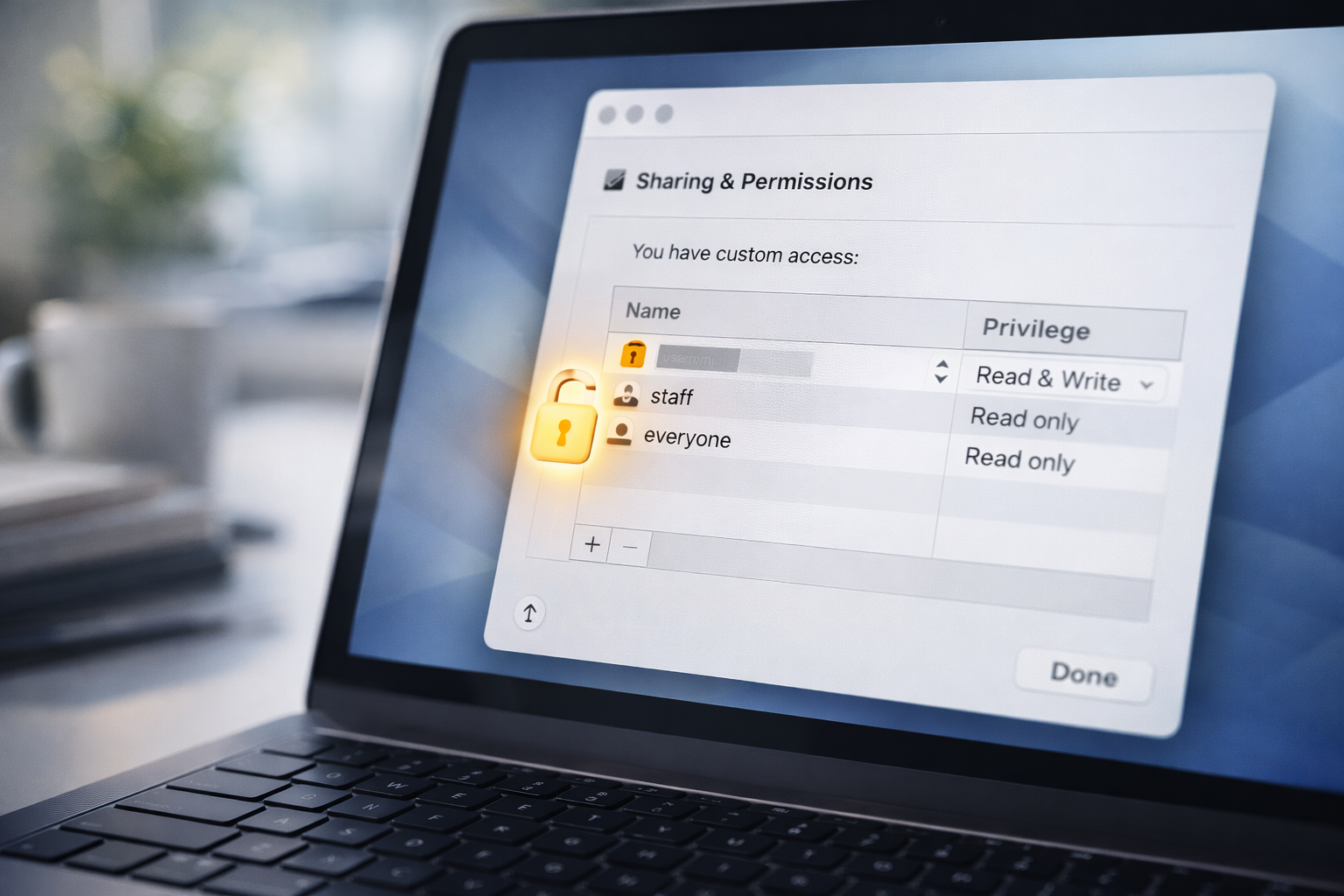
Can’t Change Permissions on Mac? Complete Fix Guide (2026)
If your Mac won’t let you adjust file or folder permissions — even when you’re sure you should be able to — it can be incredibly frustrating. Permissions are critical to macOS security, but when they block you unexpectedly, it’s usually due to file ownership, drive format, or hidden system protections.
In this guide, we’ll walk through why this happens and give you practical, easy-to-follow solutions so you can fix the issue and regain control of your files.
🔍 What Are Permissions and Why They Matter
Permissions determine who can view, open, modify, or execute files and folders on your Mac. Every item on macOS has three core access levels:
- Read — view the file
- Write — modify or delete the file
- Execute — run the file or script
Permissions are assigned to:
- The Owner
- The Group
- Everyone else
This structure keeps your system safe by preventing unauthorized access. But when permissions get misconfigured, you may suddenly find that you can’t edit or delete files even if you should be able to. Apple Support
🛑 Common Reasons You Can’t Change Permissions on Mac
1. You’re Not Logged In as an Admin
Standard users can be blocked from editing permissions. Administrative access is required to make these changes. Apple Support
2. The File Is Owned by Another Account
Files copied from another account or user won’t allow permission changes until ownership is updated.
3. The Drive Format Doesn’t Support macOS Permissions
If the file is on an external drive formatted as NTFS or exFAT, macOS may show limited access. donemax.com
4. System Integrity Protection (SIP) Limits Changes
macOS protects key system files — even from administrators — to prevent damage or security risks.
5. Corrupted Permission Metadata
Sometimes the permissions database itself becomes inconsistent, preventing changes. LinkedIn
🛠️ How to Fix “Can’t Change Permissions” on Mac
✅ 1. Use Finder’s Get Info Window
This is the simplest method most users need:
- Right-click the file or folder and choose Get Info.
- Scroll to Sharing & Permissions at the bottom.
- Click the padlock and enter your Mac password.
- Select your account and choose Read & Write.
If your user name isn’t listed, click the + icon to add it, then set the correct access. Apple Support
✅ 2. Change Ownership With Terminal
If the Finder method doesn’t work:
- Open Terminal (Applications > Utilities).
- Use this command:
sudo chown -R yourusername /path/to/file
Replace yourusername with your user name and /path/to/file with the actual file or folder path. This forces the file to be owned by you — giving you control. usercomp.com
✅ 3. Adjust Access With chmod
When ownership is correct but permissions still block changes:
sudo chmod -R 755 /path/to/file
This gives you full access and sets basic read/execute for others. You can adjust the numbers depending on what access you want. TechRepublic
✅ 4. Repair Disk Permissions via Disk Utility
If the system metadata is corrupt:
- Open Disk Utility.
- Select the affected drive.
- Choose First Aid and click Run.
This can resolve underlying permission issues without deleting your content. LinkedIn
✅ 5. Restart in Safe Mode
Safe Mode disables non-essential software that might interfere with permission changes:
- Restart your Mac and hold the Shift key until the Apple logo appears.
- Once in Safe Mode, try adjusting permissions again.
✅ 6. Check External Drive Compatibility
If the problem is on an external drive, confirm its format:
- APFS — fully supports macOS permissions
- HFS+ — supports permissions
- exFAT / FAT32 — limited support
- NTFS — read-only without third-party tools donemax.com
For NTFS drives, tools like iBoysoft NTFS for Mac can provide full read/write support without reformatting. iBoysoft
🧠 Tips for Persistent Issues
✔ Always back up critical files before changing permissions.
✔ Avoid modifying system files — macOS protects them for stability.
✔ Use Terminal commands with caution, as incorrect syntax can cause issues.
📌 SEO-Optimized Internal Linking Suggestions
Use these to link this article with related content on your site:
- Windows vs macOS comparison
<a href="/windows-vs-macos-comparison-guide">Windows vs macOS: Comparison Guide</a> - Fixing printing issues on Mac
<a href="/fix-manage-custom-sizes-greyed-out-on-mac">Fix Manage Custom Sizes Greyed Out on Mac</a> - Guide to macOS file management
<a href="/mac-file-management-tips">macOS File Management & Permissions</a> - External drive troubleshooting
<a href="/mac-external-drive-errors">How to Fix External Drive Errors on Mac</a>
📌 FAQ
❓ Why can’t I change permissions on my Mac?
This usually happens because your account isn’t an admin, the file is owned by another user, or the drive doesn’t support macOS permissions. Apple Support
❓ How do I fix permission denied errors on macOS?
Use Finder’s Get Info, Terminal commands (chown or chmod), or Disk Utility’s First Aid feature to repair broken permission settings. usercomp.com
❓ Can NTFS drives cause macOS permission problems?
Yes — NTFS doesn’t support macOS full permissions without third-party drivers. iBoysoft
❓ What if I still can’t change permissions?
Try restarting in Safe Mode or confirming you’re logged in with administrative rights. Also check the file ownership and drive format.