
Configure macOS & Windows File Sharing (Step-by-Step 2025 Guide)
Learn how to set up file sharing between macOS and Windows easily — step-by-step instructions for sharing files, enabling SMB, and accessing shared folders on both systems.

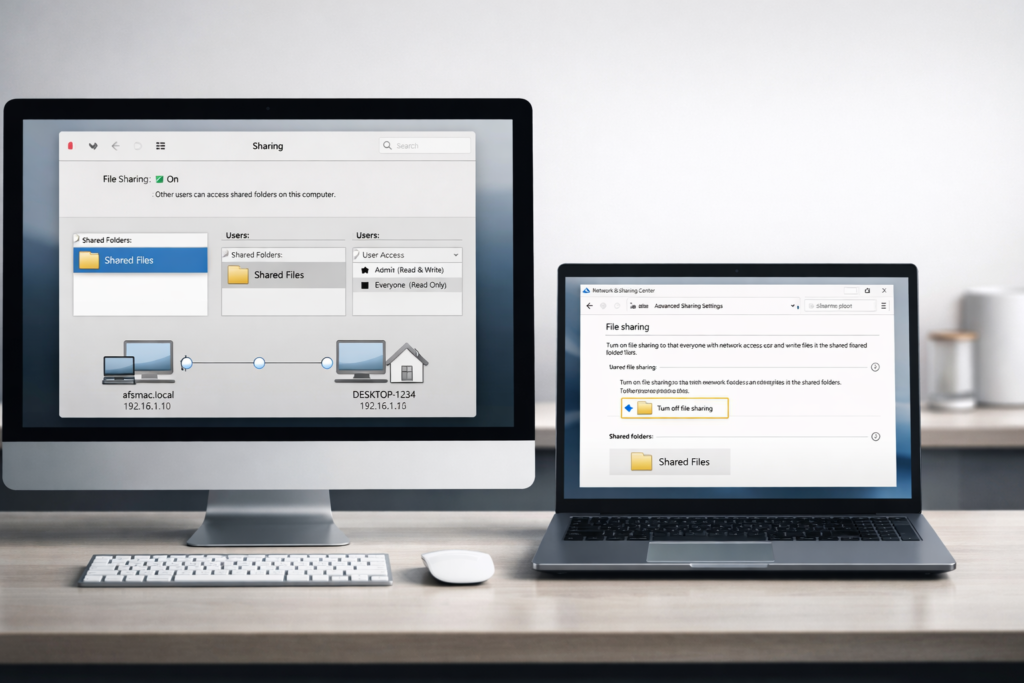
How to Configure macOS & Windows File Sharing (Step-by-Step 2025 Guide)
Sharing files between a Mac and a Windows PC might sound complicated, but it doesn’t have to be. Whether you’re in a home network or office environment, configuring file sharing between macOS and Windows can be smooth and secure when you know the right settings to use.
In this guide, we’ll walk you through why cross-platform sharing matters, how to set it up on each system, and how to troubleshoot common problems. This setup works for macOS Ventura, Sonoma, and modern versions of Windows (10 & 11).
📁 Why Configure File Sharing Between macOS & Windows?
Sharing files between Mac and Windows can help you:
✔ Access pictures, documents, and media across devices
✔ Collaborate with different users on a local network
✔ Transfer data without USB drives
✔ Use shared storage on home or business networks
macOS and Windows both support the SMB (Server Message Block) protocol, the standard method for network file sharing. By configuring SMB properly, you can make folders on your Mac accessible to Windows PCs — and vice versa.
🔧 Step-By-Step: Enable File Sharing on macOS
1️⃣ Open System Settings
- Click the Apple () menu > System Settings.
- Older versions may show System Preferences.
2️⃣ Go to Sharing
- Find Sharing in the sidebar.
- Turn on the switch next to File Sharing.
3️⃣ Add Folders to Share
- Under Shared Folders, click +.
- Choose the folder you want to share (e.g., Documents, Pictures).
- Set permissions for users (Read & Write, Read Only).
- Click Done.
4️⃣ Enable SMB (Windows File Sharing)
- Click Options.
- Make sure Share files and folders using SMB is checked.
- Check the box next to the username you want to share with.
- Enter the password for that account if prompted.
Once SMB is enabled, your Mac will broadcast the shared folders over the network, and Windows devices will be able to see them.
🔐 Adjust Permissions & Access Rights
Each shared folder can have different permissions for each user:
| Permission | Meaning |
|---|---|
| Read & Write | Full access to view and edit files |
| Read Only | Can view files but not change them |
| Write Only | Can add files but not view |
Assign permissions depending on who needs access — for example, family members vs. coworkers.
📥 Access Shared Mac Folders from Windows
Now that your Mac is ready, follow these steps on the Windows PC:
1️⃣ Open File Explorer
Press Windows + E or click the folder icon.
2️⃣ Go to Network
In the sidebar, select Network.
You should see your Mac listed here.
3️⃣ Connect to Your Mac
Double-click your Mac’s name.
Enter the username and password you set in the SMB options on your Mac.
You’ll now be able to browse and open the shared folders.
🔄 Share Windows Folders With macOS
If you want to access Windows files from a Mac:
1. Turn On Network Discovery
- Open Control Panel > Network and Sharing Center.
- Choose Change advanced sharing settings.
- Enable Network discovery and File and printer sharing.
2. Share the Windows Folder
- Right-click the folder you want to share.
- Go to Properties > Sharing tab.
- Click Advanced Sharing.
- Check Share this folder and set permissions as needed.
3. Access From Mac
- On your Mac, open Finder.
- Go to Go > Connect to Server (
Command + K). - Enter the address as:
smb://WINDOWS-PC-NAME - Authenticate with your Windows username and password.
🛠 Common Troubleshooting Tips
❗ Windows Doesn’t See the Mac
✔ Ensure both devices are on the same network
✔ Confirm SMB is enabled on macOS
✔ Try restarting both computers
❗ Can’t Connect From Mac to Windows
✔ Make sure Network Discovery is on in Windows
✔ Verify firewall settings aren’t blocking sharing
❗ Permission Errors
✔ Recheck the shared folder permissions
✔ Make sure the username/password matches
Sharing can appear blocked if there’s a mismatch between user credentials and permission levels.
FAQ
❓ Why can’t I see my Mac on Windows network?
This usually happens when SMB isn’t enabled on the Mac or both devices aren’t on the same Wi-Fi network.
❓ Do I need a password to access shared folders?
Yes — you’ll need the account credentials you used when setting up SMB on the host machine.
❓ Can I share with both Mac and Windows at the same time?
Absolutely. As long as SMB is enabled and both devices are on the same network, they can communicate.
❓ Is file sharing secure?
Yes, if you use strong passwords and limit access to trusted users.