
How to Change Security Settings on Mac to Allow Installation (2026 Guide)

Trying to install software on your Mac — but getting blocked by security warnings? Apple’s macOS is designed to protect users by restricting installations to trusted sources. That’s great for safety, but sometimes you do need to install apps from outside the App Store or from developers that aren’t recognized by Apple. Apple Support+1
In this guide, we’ll explain how macOS security works, why apps get blocked, and how you can safely adjust your settings to allow installations — without compromising your Mac’s safety.
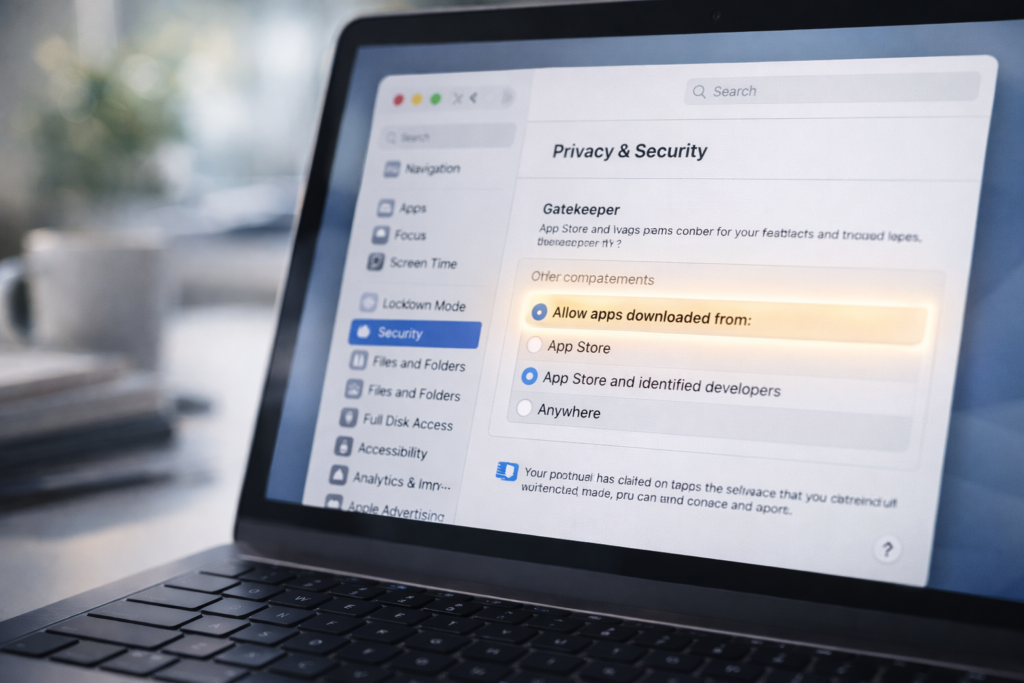
🔐 Why Your Mac Blocks App Installations
macOS uses a security feature called Gatekeeper to prevent potentially harmful software from running. By default, your Mac only allows apps from:
✔ App Store
✔ App Store + Identified Developers (Apple-trusted) Apple Support
This means if your Mac sees software that isn’t signed by Apple or a trusted developer, it will refuse to install or open it. You may see errors like:
“App can’t be opened because it is from an unidentified developer.” Macworld
This restriction is in place to protect your device, but it can be adjusted if you are sure a file is safe.
📍 Step-By-Step: Allow App Installation on macOS
Follow these steps to change your security settings:
1️⃣ Open System Settings
- Click the Apple menu () in the top left.
- Choose System Settings (or “System Preferences” on older macOS versions).
2️⃣ Go to Privacy & Security
- Scroll the sidebar and click Privacy & Security.
- In older macOS releases, this may appear as Security & Privacy. Apple Support
3️⃣ Unlock to Make Changes
- At the bottom of the window, click the padlock icon.
- Enter your administrator password to unlock settings. Apple Support
4️⃣ Change App Install Permissions
Look for the section labeled “Allow apps downloaded from:” and select:
- App Store and identified developers – safer option
- Anywhere (advanced users only) — if available and you understand the risks helpcenter.trendmicro.com
Note: On newer macOS versions the “Anywhere” option may not show up unless you enable it via Terminal first. helpcenter.trendmicro.com
Once selected, close settings and try installing your app again.
🛠 Alternative: Allow a Blocked App Manually
If you see a warning like “App is from an unidentified developer,” you can often override it:
- Don’t double-click the file directly.
- Instead, right-click (Control-click) the app.
- Choose Open from the menu.
- In the warning window, click Open again to confirm. support.bemopro.com
This creates an exception that lets you open that specific app in the future without re-adjusting security settings.
⚠️ Should You Enable “Anywhere”?
Allowing apps from anywhere gives you maximum flexibility, but it also reduces your security. Installing software from unverified sources can expose your Mac to malware or unwanted behavior.
Use the “Anywhere” option only if:
✔ You trust the app source completely
✔ You are comfortable with potential security risks
After installing the necessary app, you can revert back to a safer setting.
🧠 Need More Flexibility? Terminal Trick
On older versions of macOS (like Mojave or earlier), you can reveal the “Anywhere” option:
sudo spctl --master-disable
Then:
- Open Privacy & Security
- You will now see Anywhere under “Allow apps downloaded from”
- Select it and then lock settings again helpcenter.trendmicro.com
After installation, you can run:
sudo spctl --master-enable
to restore tighter security.
Only use this if you understand the risks.
❓ FAQ — Quick Answers
❓ Why can’t I install some apps on macOS?
Your Mac’s Gatekeeper settings only permit apps from trusted developers or the App Store by default. Apple Support
❓ Is it safe to allow apps from “Anywhere”?
It reduces security, so only do it for apps you absolutely trust. helpcenter.trendmicro.com
❓ I don’t see the “Anywhere” option — why?
Newer macOS versions hide this option by default for safety; it can be enabled via Terminal if needed. helpcenter.trendmicro.com