
Computer security is meant to protect you, but sometimes it can feel like it is working against you. You download a program you trust, open a file you have used for years, and suddenly Windows blocks it or deletes it without much explanation. That moment can feel frustrating and confusing, especially if you are not comfortable digging through settings. Many people search for how to exclude files from windows security because of false warnings, trusted apps, developer tools, game mods, or older software that Windows does not recognize anymore. This guide is here to slow things down and explain everything clearly, step by step, so you can stay protected while still using the files you trust.
Why Windows Security Sometimes Blocks Safe Files
Windows Security relies on patterns and behavior to decide whether a file is safe. It does not know your personal history with a program. If a file behaves in a way that looks unusual, such as modifying system files or running scripts in the background, Windows Defender may flag it. This is called a false positive.
For example, a small developer tool you downloaded from a forum may not be widely used. Windows sees that as unfamiliar and reacts cautiously. From your side, it feels like Windows is being overprotective. Understanding this helps you see why exclusions exist. They are not about turning protection off, but about teaching Windows which files you personally trust.
How to Exclude Files from Windows Security Step by Step
Learning how to exclude files from windows security does not require technical skills. On Windows 10 or 11, open Windows Security from the Start menu. Tap Virus and threat protection, then scroll to Manage settings. Under Exclusions, select Add or remove exclusions.
When you add a file, Windows remembers your choice and stops scanning that specific item. This means fewer interruptions and no repeated warnings. Before adding anything, pause and confirm that the file comes from a source you trust. Exclusions should feel intentional, not rushed. Once added, the file will run normally without being blocked or deleted.
How to Exclude Folder from Windows Security Without Risk
Sometimes excluding one file is not enough. Certain programs rely on many small files inside a single folder. In this case, learning how to exclude folder from windows security can save time and frustration.
When you exclude a folder, Windows stops scanning everything inside it. This is useful for game mods, development tools, or apps that update frequently. The key is choosing the smallest folder possible. Avoid excluding large system areas. A focused folder exclusion keeps protection active everywhere else while allowing your trusted software to function smoothly.
How to Exclude Files from Windows Defender Safely
Many users wonder if Windows Security and Defender are different tools. In reality, they are part of the same system. Windows Security is the dashboard, and Defender is the engine behind it. Understanding how to exclude files from windows defender simply means using the same exclusion process through the Windows Security interface.
When exclusions are added correctly, Defender still protects the rest of your system. It does not weaken overall security. Think of it as setting a rule that says this specific file is known and allowed. The rest of your downloads, emails, and USB devices remain monitored as usual.
Windows Defender Exclude Folder from Real Time Protection Explained
Real time protection constantly checks files as they open or run. When you apply windows defender exclude folder from real-time protection, Windows stops watching activity inside that folder in real time.
After exclusion, programs in that folder launch faster and no longer trigger alerts. This is helpful for tools that run scripts or modify files frequently. However, changes outside that folder are still monitored. Knowing this balance helps you use exclusions confidently without feeling like you are leaving your system exposed.
What Happens Before and After You Add an Exclusion
Before exclusion, Windows may block a file, quarantine it, or show repeated warnings. This interrupts your workflow and can even break programs that rely on that file. After learning how to exclude files from windows security and applying it properly, those interruptions stop.
You will notice smoother launches and fewer alerts. Windows does not forget the rule unless you remove it manually. If the file updates or changes location, you may need to add a new exclusion. Understanding this cause and effect helps you know what to expect instead of guessing.
Things You Should Never Exclude
Not every file deserves an exclusion. You should never exclude files from unknown email attachments, cracked software, or random downloads you do not fully trust. These files often trigger warnings for good reasons.
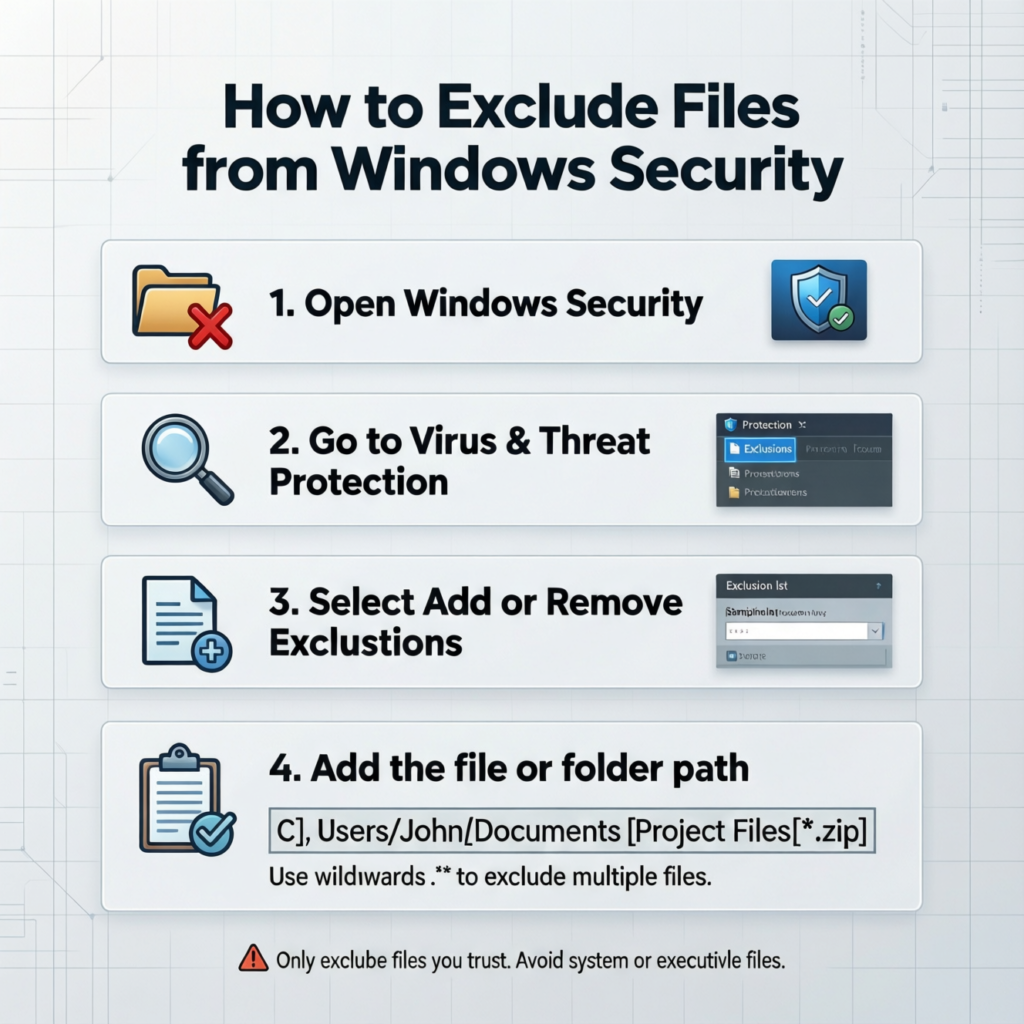
Exclusions are best used sparingly. They are for software you understand and rely on, not shortcuts around safety. If you feel unsure about a file, do not exclude it yet. Take a moment to verify the source. Windows Security is cautious by design, and sometimes that caution is justified.
Troubleshooting When Exclusions Do Not Work
Sometimes exclusions do not behave as expected. You may add a file, but Windows still blocks it. This can happen if the file is inside a compressed archive or if real time protection settings refresh after updates.
In these moments, revisiting how to exclude files from windows security helps. Make sure the file path is correct and that you excluded the actual executable, not a shortcut. Restarting the computer can also apply changes fully. If the issue persists, checking that no additional security software is interfering can resolve confusion.
Common Misunderstandings About Exclusions
A common misunderstanding is thinking exclusions turn off protection completely. They do not. They only apply to specific files or folders you choose. Another misconception is that exclusions are permanent and risky. In reality, you can remove them anytime.
Understanding how to exclude files from windows security means understanding control. You are guiding Windows, not disabling it. This mindset makes the settings feel less intimidating and more like a useful tool you can manage.
Using Exclusions Responsibly Over Time
As you continue using your computer, you may add or remove software. Reviewing your exclusions occasionally is a healthy habit. Files you no longer use do not need to remain excluded.
Learning how to exclude files from windows security is not a one time task. It is an ongoing relationship with your system. Each choice should feel deliberate. When exclusions are used thoughtfully, Windows Security remains strong while adapting to your personal workflow.
Feeling Confident with Windows Security Settings
Understanding how to exclude files from windows security removes a lot of unnecessary stress. Instead of feeling blocked or confused, you gain clarity and control. Windows Security is not there to fight you. It is there to protect you while giving you flexibility when you need it.
With clear steps and careful choices, exclusions become a helpful feature rather than a risky shortcut. Over time, you will feel more confident navigating settings, trusting your decisions, and using your computer without constant interruptions. That confidence is just as important as protection itself.
Keyword Section
how to exclude files from windows security, how to exclude files from windows defenderhow to exclude folder from windows security,windows defender exclude folder from real-time protection,windows security exclusions,windows defender false positive,allow blocked files in windows security,windows security real-time protection settings, windows defender blocking safe files,add exclusions in windows security,trusted apps blocked by windows defender,windows security exclusion not working,
Frequently Asked Questions
Is it safe to exclude files from Windows Security?
Yes, it can be safe if you are excluding files you truly trust. Windows Security is cautious by default, and sometimes it flags safe programs as suspicious. When you exclude a file you understand and regularly use, you are simply telling Windows to stop scanning that specific item. You should avoid excluding files from unknown sources or random downloads.
What happens if I exclude the wrong file?
If you exclude the wrong file, Windows Security will stop monitoring it, which could increase risk. The good news is exclusions are reversible. You can remove an exclusion at any time from the settings. If something feels off after excluding a file, it’s best to undo the exclusion and let Windows scan it again.
Why does Windows Defender keep blocking software I trust?
This usually happens because the software is uncommon, newly updated, or behaves differently than typical apps. Developer tools, scripts, and game mods often trigger alerts. Windows Defender does not know your intent, so it errs on the side of caution. Exclusions exist to handle these situations without disabling protection system-wide.
Should I exclude a single file or an entire folder?
If only one file causes issues, excluding just that file is safer. Folder exclusions are helpful when a program relies on many changing files, such as development environments or mod folders. When excluding a folder, keep it as specific and limited as possible to avoid reducing protection unnecessarily.
Do exclusions work the same on Windows 10 and Windows 11?
Yes. The layout may look slightly different, but the steps and behavior are nearly identical on both versions. Windows Security functions the same way underneath, so exclusions apply consistently across updates and versions.
Can Windows updates remove my exclusions?
Most of the time, exclusions stay in place even after updates. However, major system updates or security resets can sometimes clear settings. If a previously excluded file starts getting blocked again, it’s worth checking whether the exclusion is still listed.
Conclusion
Learning how Windows Security works can feel uncomfortable at first, especially when it blocks files you trust. The good thing is that exclusions are not about turning protection off—they’re about teaching your system what is safe for you. Once you understand where the settings are and what each option does, Windows feels far less strict and much easier to work with. You stay protected in the background while still being able to use the tools, apps, or files you rely on every day. With a bit of care and awareness, Windows Security becomes something that supports you quietly instead of getting in your way.