
Most of us reach a moment when the phone screen feels too small. Maybe you are showing photos to family. Maybe a video feels cramped. Maybe you just want to see things clearly without squinting. That is usually when people start searching for how to mirror iphone to tv and then feel unsure after reading technical explanations. The good news is that this process is simpler than it sounds. You do not need deep tech knowledge or special skills. Once you understand the basics, the steps feel calm and familiar. In this guide, we will walk through the options slowly and clearly so you can mirror your screen with confidence and enjoy what you already have on your iPhone in a bigger way.
How to mirror iphone to tv using AirPlay
AirPlay is Apple’s built in way to share your iPhone screen with a TV. If your TV supports AirPlay or you have an Apple TV connected, this method is usually the smoothest. When people ask how to mirror iphone to tv, this is often the first option worth trying.
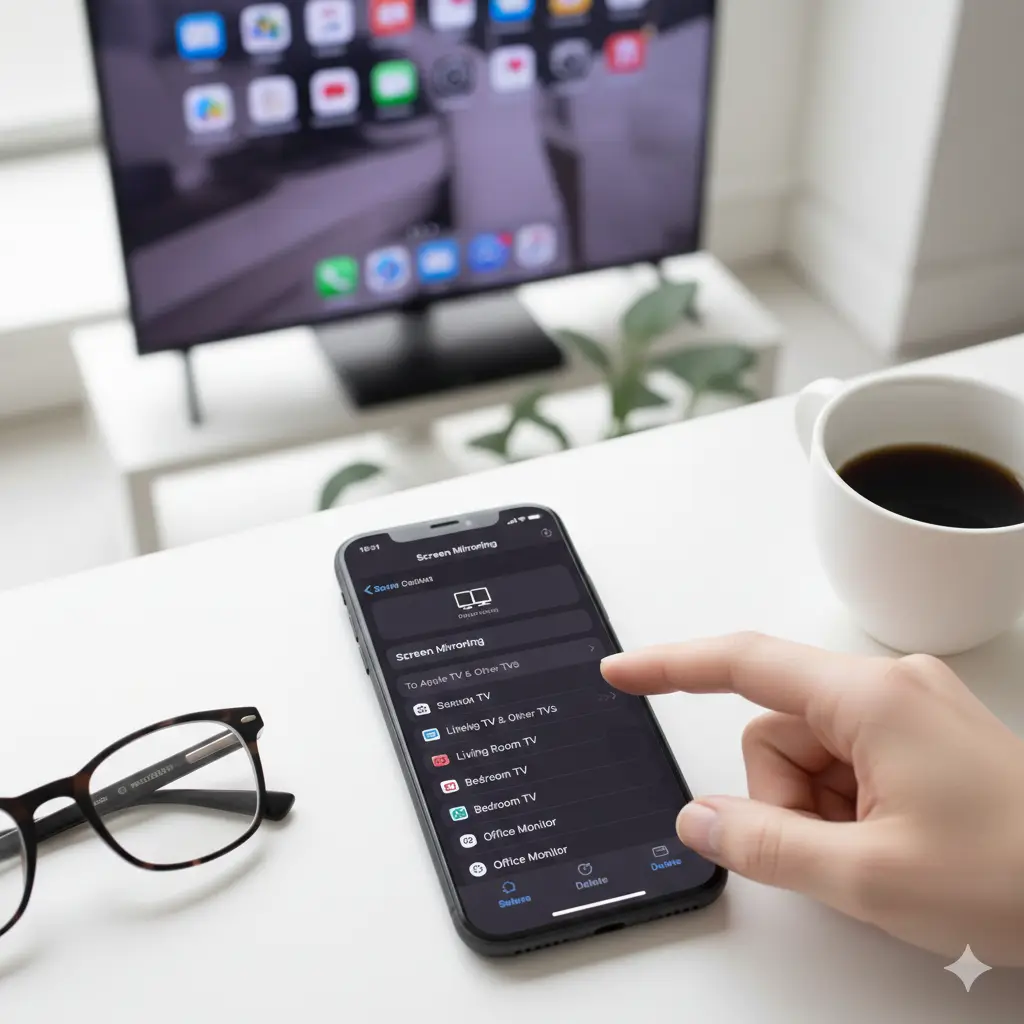
Both your iPhone and TV need to be connected to the same WiFi network. On your iPhone, open Control Center and tap Screen Mirroring. Select your TV from the list. After a short pause, your phone screen appears on the TV. Everything you do on your iPhone shows up instantly, from apps to photos to videos.
Can I mirror my phone to my tv without Apple TV
Many readers ask can I mirror my phone to my tv if they do not own Apple TV. The answer is yes, in many cases. Some smart TVs support AirPlay directly, including newer models from Samsung, LG, and Sony. If your TV settings include AirPlay, you can use the same steps as above without extra hardware.
If your TV does not support AirPlay, you still have options. Third party apps available on the App Store can help bridge the gap. These apps guide you through connecting your phone to your TV using WiFi. The steps vary slightly, but the idea remains the same. Your phone sends its screen wirelessly to the TV.
How to mirror iphone to tv without WiFi
Sometimes WiFi is not available or the connection feels unstable. In that case, learning how to mirror iphone to tv using a cable can feel reassuring. Apple offers a Lightning Digital AV Adapter or USB C adapter depending on your iPhone model.
You connect the adapter to your iPhone and plug an HDMI cable from the adapter into your TV. Switch the TV input to the correct HDMI port. Your screen appears right away. This method does not rely on wireless signals, which can make it more stable for videos or presentations. It is also helpful in places where WiFi is limited.
How do you stream from phone to tv for videos only
Sometimes you do not need full screen mirroring. You may only want to stream a video from an app like YouTube or Apple TV. When people ask how do you stream from phone to tv, they are often referring to this lighter option.
Many video apps include a small cast or AirPlay icon. When you tap it, you choose your TV and the video plays directly on the screen. Your phone becomes a remote instead of mirroring everything. This approach uses less battery and keeps your phone free for other tasks while the video plays.
How to connect AirPlay to tv when it does not appear
It can be frustrating when AirPlay does not show your TV right away. If you are trying how to mirror iphone to tv and nothing appears, a few simple checks usually help. First, confirm both devices are on the same WiFi network. Even small differences like guest networks can block the connection.
Next, check your TV settings to make sure AirPlay is turned on. Restarting both the TV and the iPhone often clears temporary issues. Software updates also matter. Keeping both devices updated helps AirPlay work more reliably. These steps solve most connection problems without extra tools.
How to broadcast phone to tv using apps
If AirPlay is not available, third party apps can help you broadcast phone to tv. These apps work by creating a local connection between your phone and TV. Some require installing a companion app on the TV as well.
The setup usually involves opening the app, following on screen instructions, and confirming the connection. Performance depends on your network quality, but for photos, browsing, and casual video viewing, it works well. This option gives flexibility when built in features are not supported by your TV.
How to project phone to tv for presentations
Projecting your phone screen can be useful for slides, documents, or simple demos. Learning how to mirror iphone to tv in this context helps keep things clear and visible to everyone in the room.
For presentations, a wired connection is often the most stable. Wireless mirroring works too, but a cable reduces delays and interruptions. Once connected, your slides or notes appear on the TV exactly as they do on your phone. This makes it easier to explain ideas without juggling devices.
How to screen mirror iphone to samsung tv
Samsung TVs are popular, and many newer models support AirPlay directly. If you want to screen mirror iphone to samsung tv, first check that AirPlay is enabled in the TV settings. Once it is on, the process feels very straightforward.
Open Control Center on your iPhone, tap Screen Mirroring, and select the Samsung TV. After a brief connection, your screen appears. If your Samsung TV does not support AirPlay, Samsung’s SmartThings app or third party mirroring apps can help connect the devices using WiFi.
Common problems and calm fixes
Even when you understand the steps, small issues can appear. Delays, audio not syncing, or dropped connections are common concerns. When working through how to mirror iphone to tv, patience helps more than technical knowledge.
Restarting devices often fixes minor glitches. Reducing the number of devices on your WiFi network can also improve performance. If wireless mirroring feels inconsistent, switching to a cable offers a steady alternative. Most problems have simple fixes once you slow down and check the basics.
Choosing the right method for your needs
There is no single best method for everyone. Some people prefer wireless mirroring for convenience. Others choose cables for reliability. Understanding how to mirror iphone to tv gives you the freedom to choose what fits your situation.
If you mirror often, AirPlay becomes second nature. If you mirror occasionally, a cable might be easier to keep on hand. Both approaches are valid, and neither requires advanced skills. The goal is comfort and ease, not perfection.
Feeling confident with screen mirroring
Once you try it a few times, mirroring feels natural. You stop worrying about settings and focus on what you want to share. Learning how to mirror iphone to tv is really about reducing friction between devices.
Technology works best when it fades into the background. When your phone and TV connect smoothly, you gain space to enjoy photos, videos, and conversations without distraction. With a little practice, screen mirroring becomes a simple part of daily tech use, not something to stress about.
Keywords
how to mirror iphone to tv,screen mirroring iphone to smart tv,can i mirror my phone to my tv,how do you stream from phone to tv,how to connect airplay to tv,how to broadcast phone to tv,how to project phone to tv,how to screen mirror iphone to samsung tv,iphone screen sharing with tv,airplay screen mirroring iphone,
Frequently Asked Questions
Can I mirror my iPhone to my TV without using WiFi
Yes, you can. If WiFi is not available, you can use a cable connection. An Apple Lightning or USB C digital adapter connects your iPhone directly to the TV using an HDMI cable. Once connected, your screen appears instantly. This method is very stable and works well for videos, photos, and presentations, especially in places where wireless connections are weak.
Why is my TV not showing up in Screen Mirroring
This usually happens when the iPhone and TV are not on the same WiFi network. Even small differences like a guest network can cause issues. Make sure AirPlay is turned on in your TV settings. Restarting both devices and checking for software updates often fixes the problem quickly.
Does screen mirroring drain iPhone battery
Yes, screen mirroring uses more battery than normal phone use because your iPhone is constantly sending data to the TV. If you plan to mirror for a long time, it helps to keep your phone plugged in or fully charged. Using a wired connection can also reduce battery drain.
Can I still use my phone while mirroring to the TV
If you are using full screen mirroring, everything you do on your phone will appear on the TV. If you only stream a video using AirPlay from an app, you can still use your phone for other tasks. In that case, your phone acts more like a remote control.
Is screen mirroring safe for personal content
Screen mirroring is generally safe as long as you trust the network and the TV you are using. Be mindful that notifications, messages, and calls can appear on the TV while mirroring. Turning on Do Not Disturb can help keep things private when sharing your screen.
Conclusion
Technology often feels complicated until someone explains it slowly and without pressure. Learning how to share your iPhone screen with a TV is one of those things that sounds technical but turns out to be very manageable. Once you try it a few times, it becomes a normal part of using your devices. Whether you choose wireless mirroring or a simple cable connection, the goal is comfort and clarity. You are not trying to master technology. You are simply making it work for you. Take your time, trust the process, and enjoy seeing your iPhone content on a bigger screen without stress or confusion.