
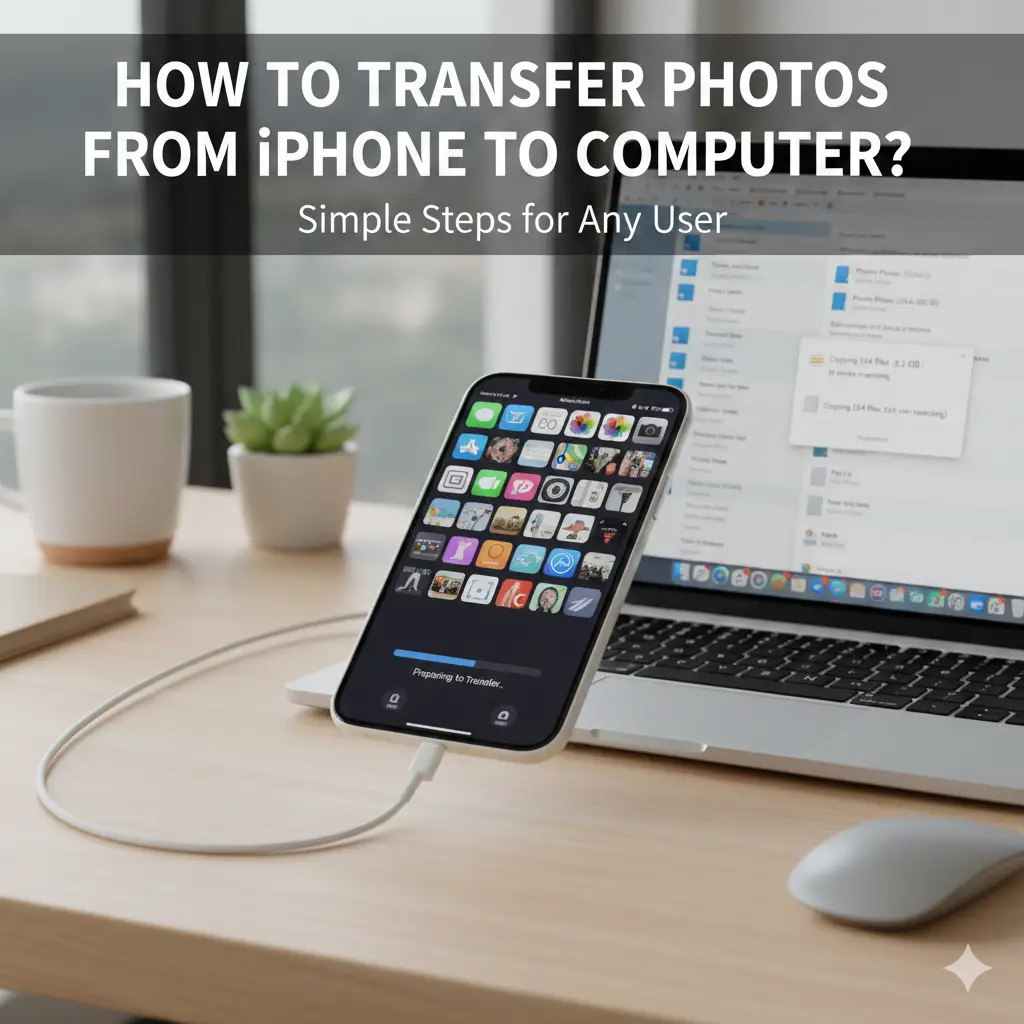
Using an iPhone is meant to feel simple, but sometimes small tasks can feel confusing, especially when you are not very comfortable with tech. Moving photos off your phone is one of those moments. You might want to save memories, free up storage, or just see your pictures on a bigger screen. Learning how to transfer photos from iphone to a computer does not require special skills or expensive software. It is more about understanding a few calm options and choosing the one that feels right for you. Once you see how it works, the process feels familiar and manageable, and technology starts to feel like something that supports you rather than something that gets in the way.
How to get photos from iphone to a computer using a USB cable
The most common way to move photos is by using the charging cable that already came with your phone. When you connect your iPhone to a computer, it creates a direct link between the two devices. Your computer can then see your photos as files that are ready to be copied.
On Windows, the Photos app usually opens automatically and guides you through the steps. On a Mac, the Photos app does the same. This method is reliable and does not depend on internet speed. For many people, this is the easiest place to start when learning how to transfer photos from iPhone to computer, especially if you prefer a clear and direct connection.
How to get pictures from phone to computer without cables
If you do not like dealing with cables, wireless options can feel more comfortable. Cloud services like iCloud allow your photos to sync automatically. Once they are synced, you can open a browser or app on your computer and download the pictures you need.
This approach works well when you move between devices often. It does rely on internet access, so it may take time with large photo libraries. Still, for everyday use, it offers a gentle and hands-off way to understand how to transfer photos from iPhone to computer without plugging anything in.
How to send photos from iPhone to computer using AirDrop
For Mac users, AirDrop is a simple option built into the system. It lets you send photos wirelessly from your iPhone to your Mac with just a few taps. Both devices need WiFi and Bluetooth turned on, and they need to be close to each other.
You select photos on your iPhone, tap the share icon, and choose your Mac from the list. The photos appear on your computer almost instantly. Many people enjoy this method because it feels quick and natural once you know where to tap. It is another clear example of how to transfer photos from iPhone to computer without extra steps.
How to send videos from iPhone to computer safely
Videos are often larger than photos, so moving them can feel more intimidating. The good news is that the same methods work for videos, too. Using a USB cable is usually the most stable choice, especially for long clips.
Cloud services and AirDrop also support videos, but they may take longer to complete. It helps to be patient and keep both devices active until the transfer finishes. Understanding this makes transferring photos from iPhone to computer and videos feel like one connected process rather than two separate challenges.
How to get photos from iPhone to computer with email or messaging
For a small number of photos, email or messaging apps can be helpful. You can attach photos to an email and send them to yourself, then open the message on your computer and download them.
This method is not ideal for large albums or videos, but it works well for quick sharing. It also helps beginners feel more confident because email is familiar. It shows that learning how to transfer photos from iphone to a computer does not always require special tools.
Understanding file formats and where your photos go
When you move photos to a computer, they are usually saved in common formats like JPG or HEIC. Most computers can open these files easily. Knowing where they are saved helps reduce confusion later.
On Windows, photos often go into the Pictures folder. On Mac, they may open directly in the Photos app. Once you know where to look, managing your images becomes simpler. This awareness supports a smoother experience with how to transfer photos from iPhone to computer and helps you stay organised.
How to transfer photos from a computer to a phone when needed
Sometimes you want to move photos the other way. You might edit pictures on your computer and then send them back to your phone. Sync tools like iTunes or Finder on Mac allow this transfer.
Cloud services also make this easy. Upload the photos from your computer and let them sync to your phone. Understanding both directions helps you feel more in control and makes transferring photos from iPhone to computer part of a flexible system rather than a one-time task.
Common issues and how to stay calm when they happen
Sometimes your computer does not recognise your iPhone right away. When this happens, try unlocking your phone or trusting the computer when prompted. Restarting both devices can also help.
Slow transfers are often related to large file sizes or weak internet connections. Taking a moment to pause and retry usually solves the issue. These small bumps are normal, and they do not mean you are doing something wrong while learning how to transfer photos from iPhone to computer.
Choosing the method that fits your routine
There is no single best way for everyone. Some people prefer cables because they feel secure. Others enjoy wireless options because they feel lighter and more flexible. The right choice depends on how often you move photos and what tools you already use.
Once you try a few methods, one will start to feel natural. That comfort is the real goal of understanding how to transfer photos from iPhone to computer, not memorising steps.
Building confidence with simple tech habits
Each time you move photos successfully, your confidence grows. Tasks that once felt confusing begin to feel familiar. You start to trust yourself with other small tech tasks too.
This steady progress matters more than speed. Learning how to transfer photos from iPhone to computer is not about being perfect. It is about feeling calm and capable when you need to manage your digital memories.
Feeling comfortable with your photos and your devices
Photos often carry personal meaning. Knowing how to save and move them safely gives peace of mind. You know your memories are backed up and easy to access.
When technology feels understandable, it becomes supportive instead of stressful. By taking the time to learn how to transfer photos from iPhone to computer, you give yourself a skill that makes everyday tech feel lighter and more manageable. That confidence carries into other areas, helping you feel more relaxed and in control whenever you use your devices.
Keywords
how to transfer photos from iPhone to computer, how to get photos from iPhone to computer, how to send photos from iPhone to computer, how to get pictures from phone to computer, how to send videos from iPhone to computer, how to transfer photos from computer to phone iPhonee to pc photo transfer, iPhone to Mac photo transfer,
Frequently Asked Questions
Can I transfer photos from my iPhone to a computer without iTunes?
Yes, you can. Many people transfer photos using a USB cable with the Photos app on Windows or Mac without opening iTunes. You can also use iCloud, AirDrop on Mac, or even email for small batches of photos. These options are often simpler for beginners.
Why is my computer not recognising my iPhone?
This usually happens when the phone is locked or has not been trusted yet. Unlock your iPhone and look for a message asking you to trust the computer. Using an original or good-quality cable also helps avoid connection problems.
Does transferring photos delete them from my iPhone?
No, transferring photos normally copies them to your computer. Your original photos stay on your iPhone unless you manually delete them afterwards. This gives you control over when and how you free up storage.
Is iCloud safe for transferring photos?
iCloud is generally safe and widely used. Your photos are stored online and synced across devices using your Apple ID. Just make sure you are signed in correctly and have enough storage space available.
Can I transfer photos from an iPhone to a Windows computer?
Yes, you can. Windows computers support iPhone photo transfers using a USB cable and the built-in Photos app. You can also use iCloud through a web browser or the iCloud app for Windows.
What is the easiest method for beginners?
For most beginners, using a USB cable with the Photos app is the easiest place to start. It is direct, clear, and does not rely on internet speed. Once you feel comfortable, you can explore wireless options if you like.
Conclusion
Moving photos from your iPhone to a computer does not have to feel confusing or stressful. Once you understand the basic options, the process becomes calm and familiar. Whether you prefer using a cable, a wireless feature like AirDrop, or a cloud service, each method gives you a safe way to protect your memories and free up space on your phone. The key is choosing what fits your routine and comfort level. Technology works best when it feels supportive, not overwhelming. With a little practice, transferring photos becomes just another small task you can handle with confidence, knowing your pictures are organized, backed up, and easy to access whenever you need them.