
Introduction
Many people look for ways to run Android apps or games on a computer because phones can feel limiting. Small screens, fast battery drain, and slow performance can quickly become frustrating. A PC offers a larger display, a keyboard, and more power, which makes everyday apps and games easier to handle.
If you have searched online before, you may have noticed how confusing the results can be. Technical terms, long setup guides, and mixed opinions often make things harder than they need to be. The truth is, Android emulators are not as complex as they sound. In this guide, we’ll walk through the Top 10 Best android emulator for pc options in simple language, explaining what each one does, who it is for, and how to use it without stress.
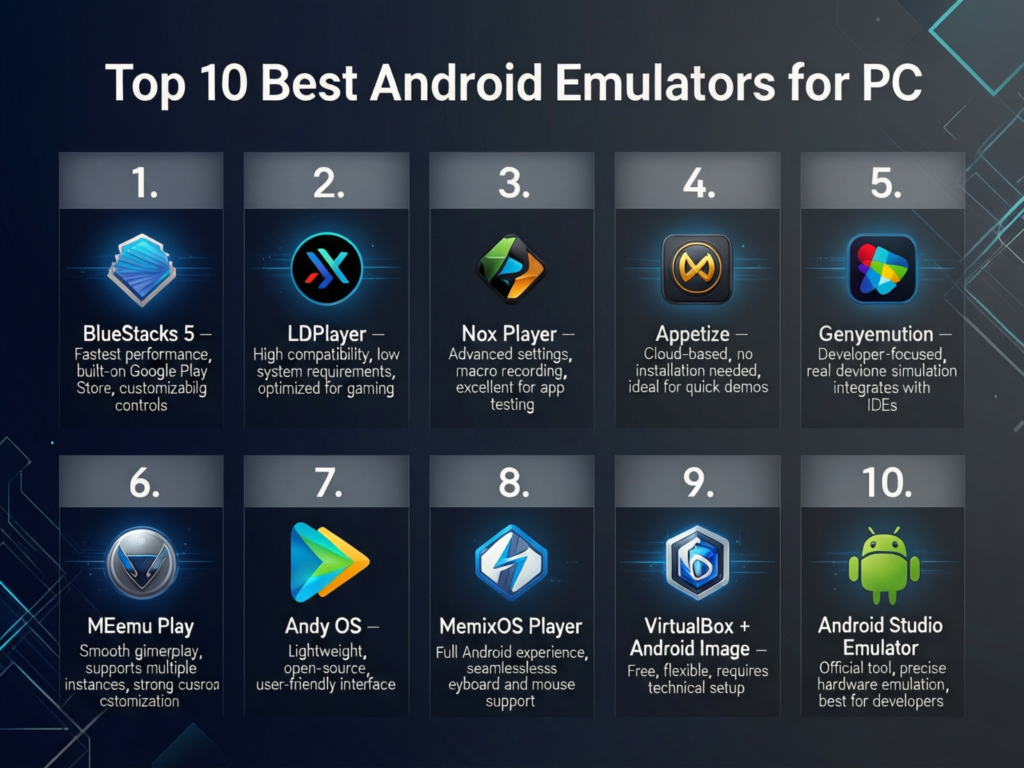
Top 10 Best android emulator for pc
An Android emulator is a program that lets your computer act like an Android phone. It creates a virtual Android environment where apps believe they are running on a real device. The Top 10 Best android emulator for pc list below focuses on stability, ease of use, and safety rather than flashy promises.
We will cover emulators suited for beginners, gamers, developers, and people with older computers. Each option is available from its official website and supports common tasks like installing apps from the Play Store, playing mobile games with keyboard controls, or testing apps on a larger screen.
1. BlueStacks – Best for beginners and casual gaming
BlueStacks is often recommended to first-time users because it feels familiar and simple. It installs like a regular PC program and guides you through sign-in and setup step by step. Once running, you see a home screen similar to an Android tablet.
It works well on most mid-range PCs with at least 8 GB RAM and a modern processor. You download it directly from the official BlueStacks website. A common use case is playing games like Subway Surfers or using apps like WhatsApp with a keyboard. For beginners exploring the Top 10 Best android emulator for pc, this is usually the easiest place to start.
2. NoxPlayer – Good balance for gamers and app users
NoxPlayer focuses on performance while staying friendly to non-technical users. It supports keyboard mapping, game controllers, and multiple Android versions. This makes it useful for both games and everyday apps.
System requirements are moderate, but it runs best with virtualization enabled in BIOS. You download it from the official NoxPlayer website and follow a simple installer. A realistic example is running Instagram and a mobile game side by side using multi-instance mode. Among the Top 10 Best android emulator for pc, NoxPlayer offers flexibility without overwhelming settings.
3. LDPlayer – Optimized for Android games
LDPlayer is built with gaming in mind. It focuses on smooth frame rates and stable performance for popular Android games. The interface is clean and does not require much adjustment after installation.
It runs well on Windows 10 and later, even on some lower-end systems. Always download it from the official LDPlayer site to avoid fake installers. Many users install it to play games like Free Fire or Clash of Clans on a bigger screen. If gaming is your main goal within the Top 10 Best android emulator for pc, LDPlayer is worth considering.
4. Android Studio Emulator – Best for developers and testers
This emulator comes directly from Google as part of Android Studio. It is designed mainly for developers who need to test apps on different Android versions and screen sizes.
The setup is more technical than others and requires a stronger PC. You download Android Studio from the official Android developer website. A common use case is testing how an app behaves on different Android versions before publishing. While not ideal for casual users, it earns its place in the Top 10 Best android emulator for pc list for professional work.
5. MEmu Play – Flexible and performance focused
MEmu Play supports multiple Android versions and works well for both apps and games. It allows users to switch between Android versions easily, which is useful for compatibility testing.
It runs best on systems with at least 8 GB RAM. Download it only from the official MEmu website. A typical example is running productivity apps during the day and games in the evening without reinstalling anything. For users comparing the Top 10 Best android emulator for pc, MEmu offers a good mix of power and control.
6. Genymotion – Cloud and desktop options
Genymotion offers both desktop and cloud-based emulators. The desktop version is suitable for developers, while the cloud option runs Android on remote servers and streams it to your browser.
It requires account registration on the official Genymotion website. A realistic use case is testing an app on a virtual phone without installing heavy software locally. It is not designed for gaming, but for testing and learning, it fits well into the Top 10 Best android emulator for pc lineup.
7. GameLoop – Focused on specific games
GameLoop is designed mainly for certain popular mobile games. It is officially supported by some game publishers, which helps with compatibility.
System requirements are moderate, but it works best with a dedicated graphics card. Download it only from the official GameLoop website. A common example is playing competitive mobile shooters with mouse and keyboard. For gamers reviewing the Top 10 Best android emulator for pc, this option suits specific titles rather than general app use.
8. PrimeOS – Android as a full desktop system
PrimeOS is different from other emulators. Instead of running inside Windows, it installs Android as a separate operating system or boots from a USB drive.
It requires more setup but offers a full desktop-style Android experience. You download PrimeOS from its official website. A realistic example is turning an old laptop into an Android-based system for light use. This unique approach earns PrimeOS a spot in the Top 10 Best android emulator for pc list.
9. Bliss OS – Open-source Android experience
Bliss OS is an open-source Android system designed for PCs. Like PrimeOS, it can run alongside or instead of Windows.
It works best on compatible hardware and requires careful installation. Always use the official Bliss OS website. A typical use case is experimenting with Android in a desktop layout without ads or bundled software. For users who like control and transparency, it stands out among the Top 10 Best android emulator for pc.
10. KoPlayer – Simple but less frequently updated
KoPlayer offers a simple interface and basic features for running Android apps. However, updates are less frequent compared to other options.
It runs on older systems but may lack support for newer apps. Download only from the official site if available. A common example is using older apps or games that don’t require the latest Android version. While limited, it still completes the Top 10 Best android emulator for pc list.
What is the best android emulator for PC for beginners?
For beginners, simplicity matters more than advanced features. BlueStacks is often the easiest choice because it installs quickly and explains each step clearly. You open it, sign in with your Google account, and install apps like you would on a phone.
NoxPlayer is another beginner-friendly option if you want more control later. Both avoid technical language and offer on-screen tips. When choosing from the Top 10 Best android emulator for pc, beginners should focus on ease of setup rather than performance tweaks.
Is there a PC emulator for Android apps and games?
Yes, several emulators support both apps and games. BlueStacks, LDPlayer, and MEmu are popular because they balance performance and usability. These emulators simulate Android so apps think they are running on a phone.
For example, you can install WhatsApp to type messages using a keyboard or play games without draining your phone battery. Understanding this makes the Top 10 Best android emulator for pc options feel less mysterious and more practical.
How to download an Android emulator for PC (step by step)
First, decide which emulator fits your needs. Then visit the official website of that emulator. Avoid third-party download sites, as they often include unwanted software.
Click the download button, run the installer, and follow on-screen instructions. After installation, sign in with a Google account to access the Play Store. This process is similar across most options in the Top 10 Best android emulator for pc, which helps reduce confusion.
Is Android emulator software safe for PC?
Android emulators are safe when downloaded from official sources. Problems usually come from fake websites or modified installers. Always check the website address carefully before downloading.
Common beginner mistakes include skipping antivirus warnings or installing extra bundled software. Stick to well-known names from the Top 10 Best android emulator for pc list and keep your system updated. Doing this keeps your PC stable and secure.
Keyword Section
Top 10 Best android emulator for pc,best android emulator for pc,android emulator for windows 10,android emulator for low-end pc,android emulator for gaming,free android emulator for pc,pc emulator for android apps,safe android emulator software,android emulator for beginners,android emulator download for pc,
❓ Frequently Asked Questions (FAQs)
Can I run Android apps on my PC without programming knowledge?
Yes. Most Android emulators are built for regular users, not developers. You install them like normal PC software, sign in with a Google account, and download apps from the Play Store. No coding or technical setup is required.
Which Android emulator works best on a low-end PC?
LDPlayer and BlueStacks Lite versions usually work better on low-end systems. They are designed to use fewer system resources. Performance still depends on your RAM and processor, but these options are more forgiving.
Is it safe to log into my Google account on an emulator?
It is safe as long as you download the emulator from its official website. Well-known emulators use secure connections similar to Android phones. Avoid unofficial or modified versions.
Why does my emulator feel slow sometimes?
Slowness often happens when virtualization is disabled, RAM is low, or too many apps are open. Enabling virtualization in BIOS and closing background programs usually improves performance.
Can I uninstall an emulator easily if I don’t like it?
Yes. Android emulators can be removed just like any other Windows program through Control Panel or Settings. They do not lock you in.
🧭 Conclusion
Using an Android emulator on a PC is much simpler than it first appears. You don’t need to be a tech expert or understand complex settings. Most emulators are designed to feel familiar, especially if you already use an Android phone. Whether your goal is gaming, using apps on a bigger screen, or saving your phone’s battery, there is an option that fits your comfort level. Start slowly, stick to official downloads, and give yourself time to explore. With a little patience, running Android on a PC can feel just as natural as using it on a phone.